 Fisha
Fisha
Free up space
without losing anything.
Fisha shows you where your photo storage goes, finds exactly the photos you’re looking for in seconds – and lets you decide calmly what can go. If you like, back them up to a drive or the cloud first, every file verified.
- Data Not Collected
- No subscription – Pro is a one-time US$4.99 / €4.99
- Nothing is deleted automatically
- Fisha itself never uploads anything
The Photos app does a lot. Just not this.
photos and videos sit on the average iPhone. 80% of people have pictures they’ve never looked at again since taking them.
Apple’s Photos app can’t select a date range, can’t sort by file size and on iPhone can’t show photos that aren’t in any album. And selecting lots of photos is tedious.
That’s what some cleanup apps charge as a subscription, often with aggressive ads. Fisha does it differently.
Figures: Mixbook survey, via TechRadar.
Find. Swipe. Done.
-
1
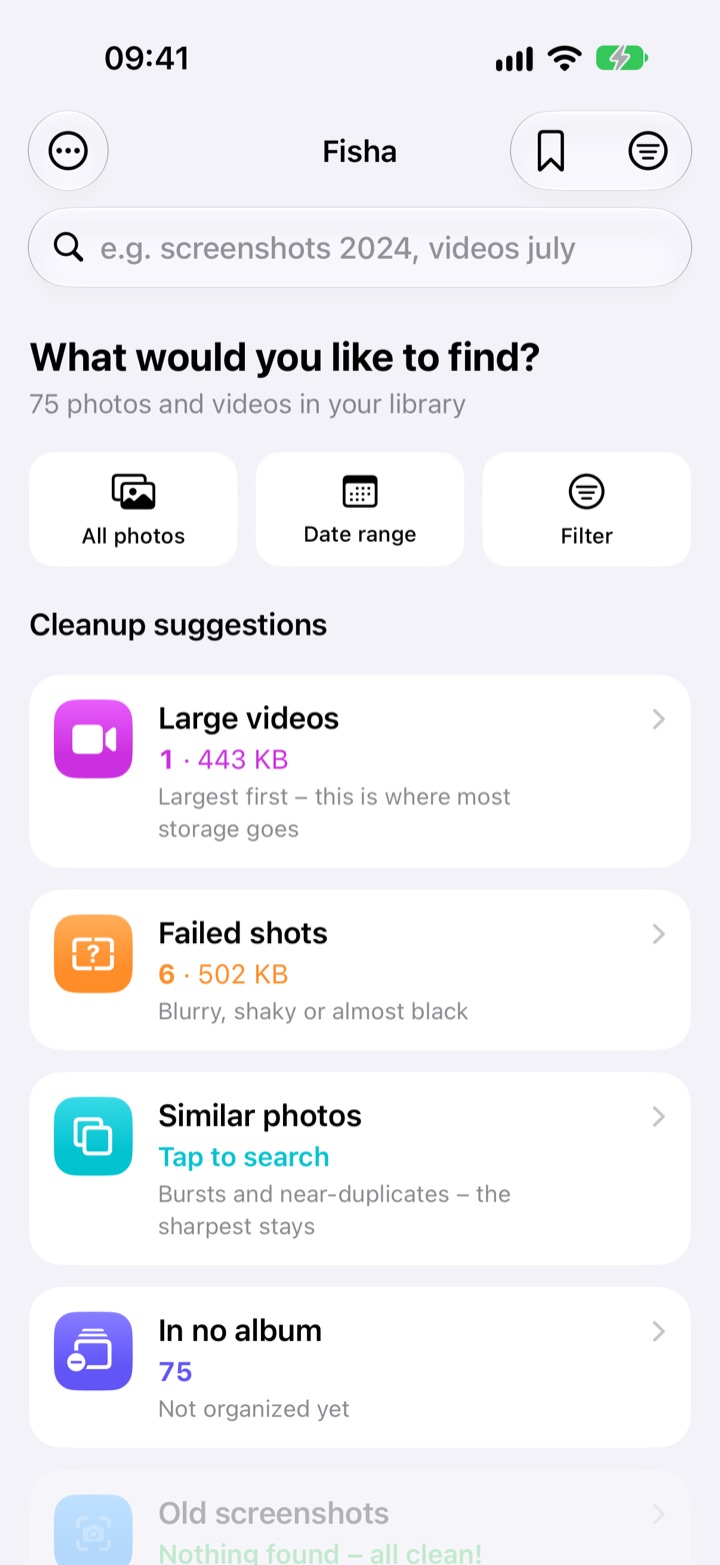
Pick a suggestion or search
Tap “Large videos” or type “screenshots older than a year”.
-
2
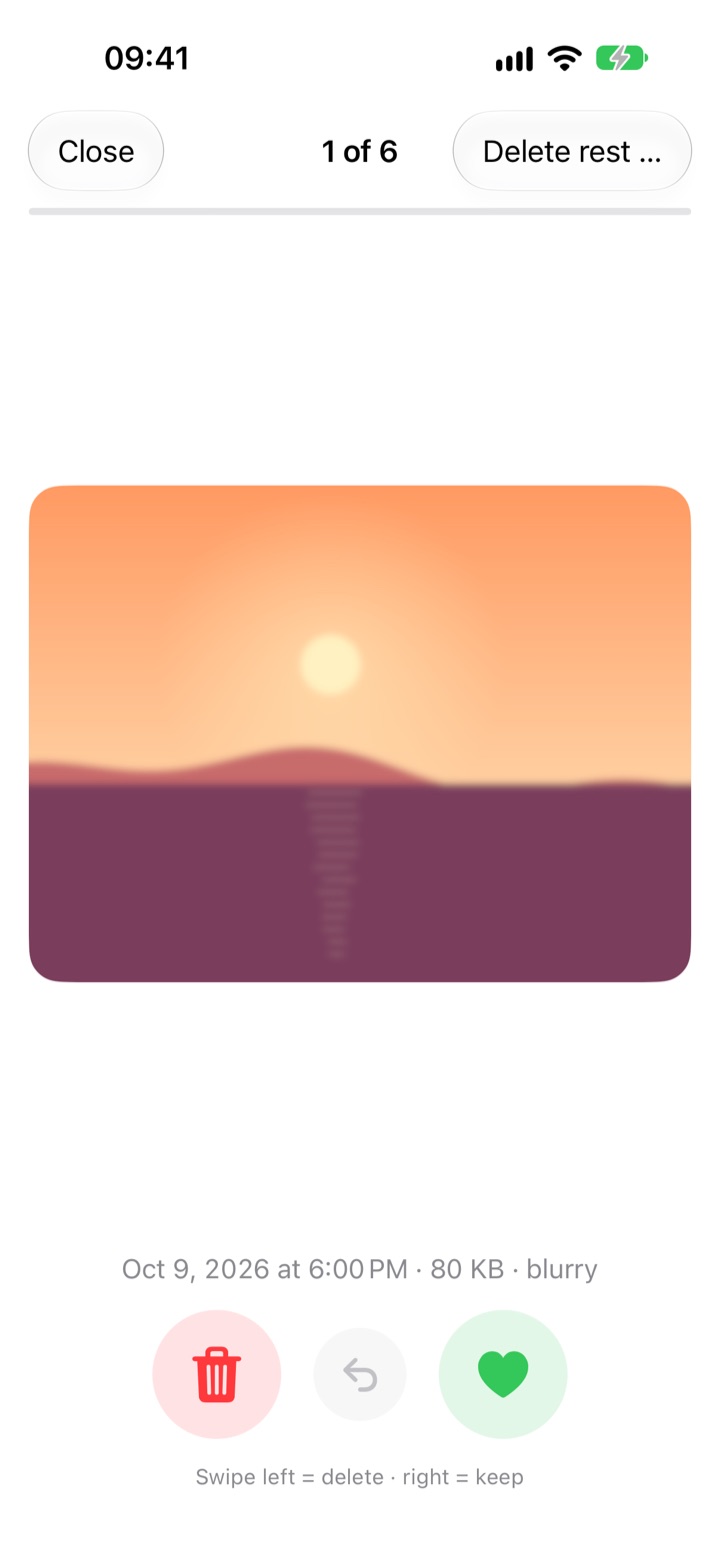
Swipe
Photo by photo: delete or keep. Or select dozens at once with a single swipe.
-
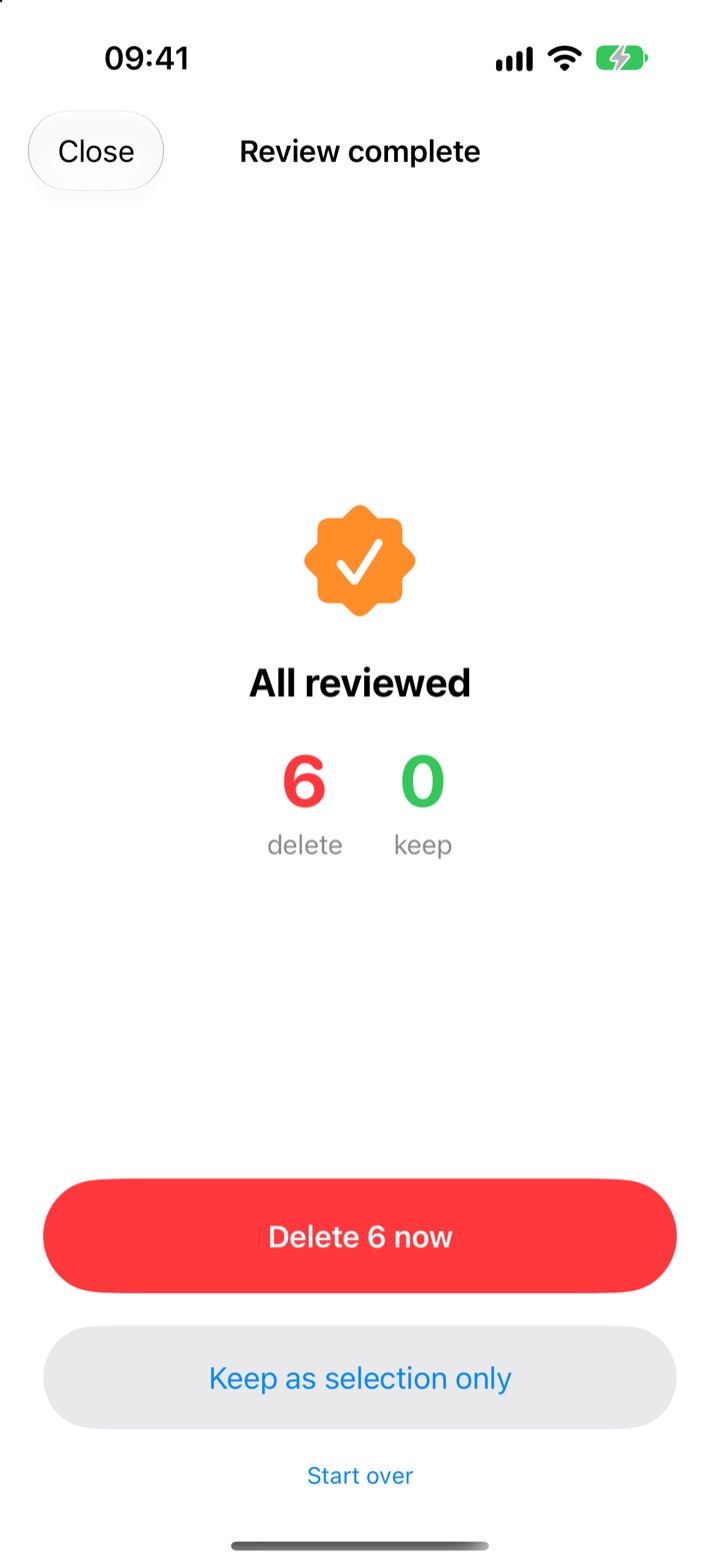
3
Gain space
Check the summary, delete, done. Fisha shows how much storage you free up.
Back up first, then delete.
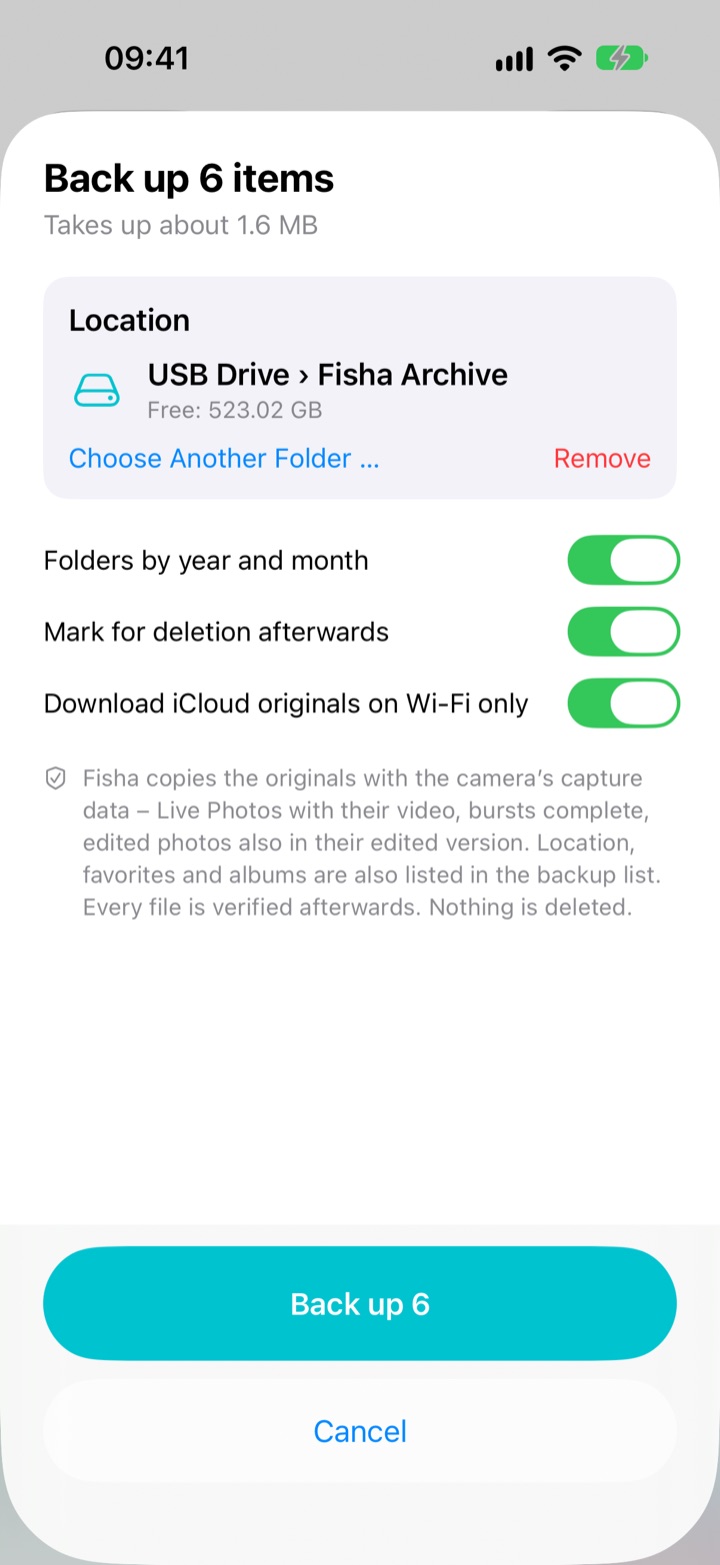
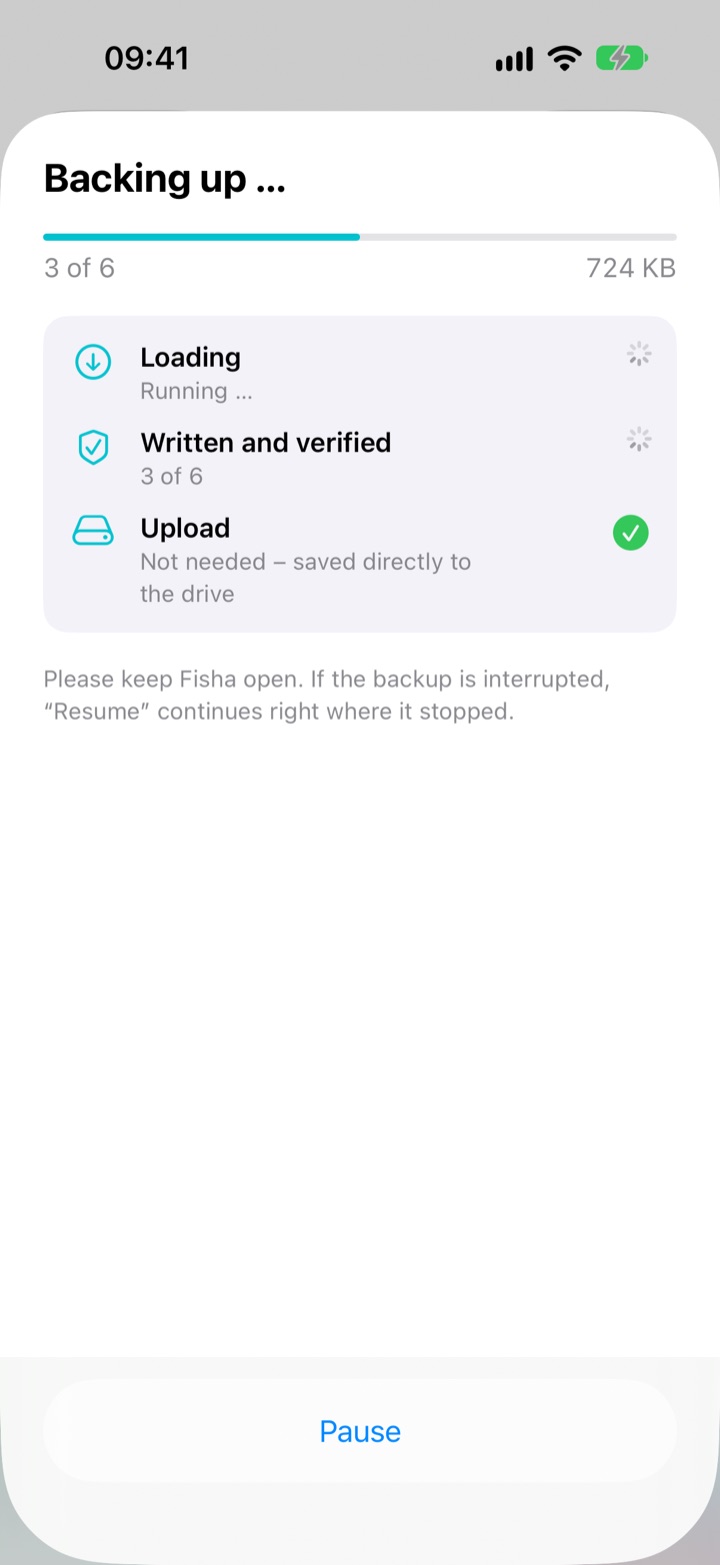
Fisha copies your photos and videos to a USB drive, hard drive or your cloud, verifies every file – and only deletes once everything is safe.
-
1
Back Up
Choose a USB drive, SSD or cloud folder – anything the Files app knows.
-
2
Verify
Fisha reads every copied file back and compares it by checksum.
-
3
Clean up
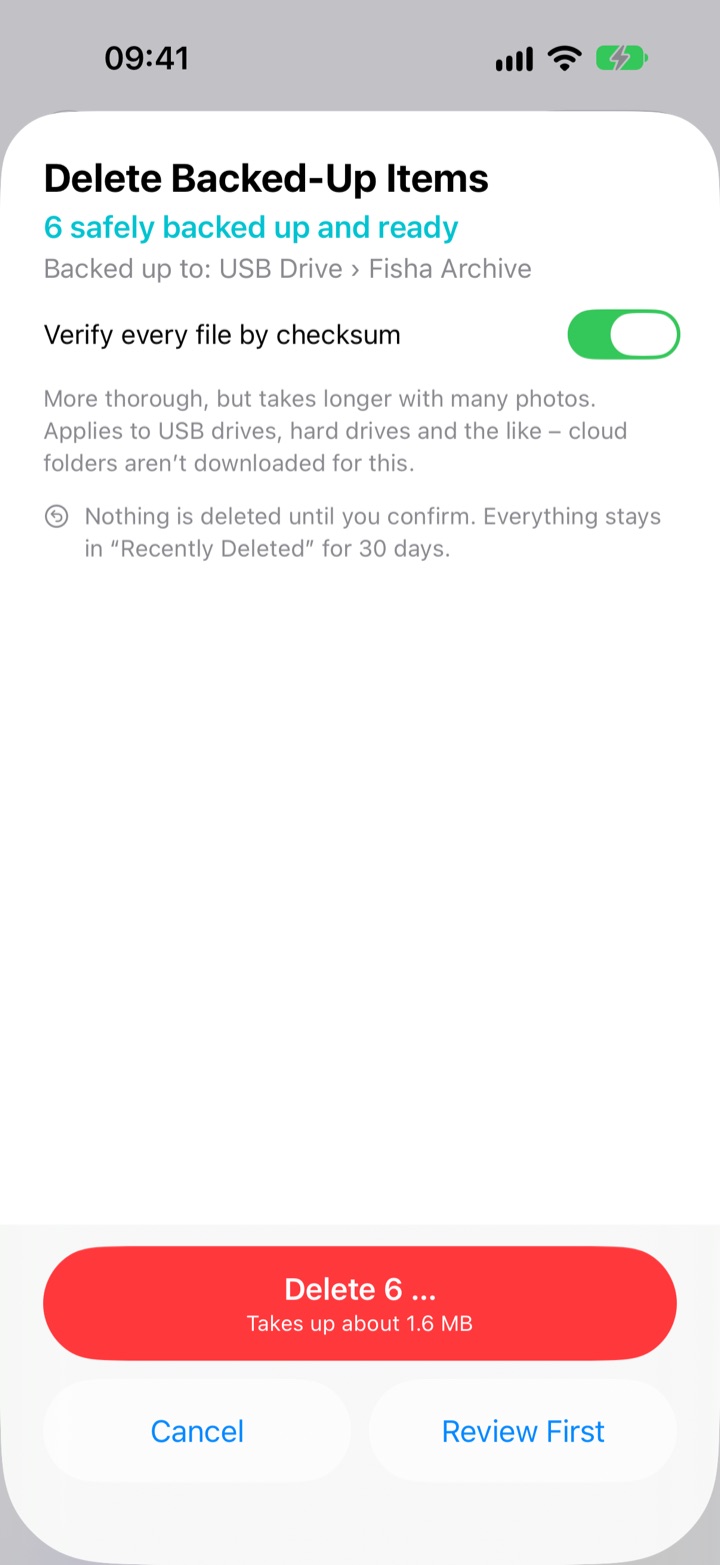
The delete run checks every backup once more. Only what’s safe gets deleted.
- Complete originals With the camera’s capture data. Live Photos with video, bursts complete, edited photos also in their edited version.
- You see what’s happening Progress per file and three status lights: Loading · Written and verified · Upload.
- Pause, continue later Even in the middle of a 10 GB video – “Resume” picks up right where it left off.
- Honest about the cloud If a provider doesn’t report upload status, Fisha tells you – and only deletes after you confirm.
To your drive. To your cloud. Never to us.
Clean up without regrets.
Fisha does the work – the decision stays with you.
- Nothing is deleted automatically First the summary, then your confirmation – and then iOS asks too. You see exactly what goes.
- Recoverable for 30 days Everything goes to “Recently Deleted” in the Photos app, as usual.
- Remembers what you keep Photos you kept while reviewing won’t be suggested again.
- Strict detection Better one match too few than one good photo too many.
- Identical copies: one always stays Only files that are identical byte for byte – favorite first, then album photo, then the oldest.
- Warns about favorites & albums Favorites, edited photos and photos from your own albums are called out first. One tap leaves them out.
- Checks right before deleting If your library has changed in the meantime, Fisha asks again instead of deleting blindly.
- No delete list if the analysis looks off If a result seems implausible, you get an honest notice instead of a delete list.
Clean up. Search. Select.
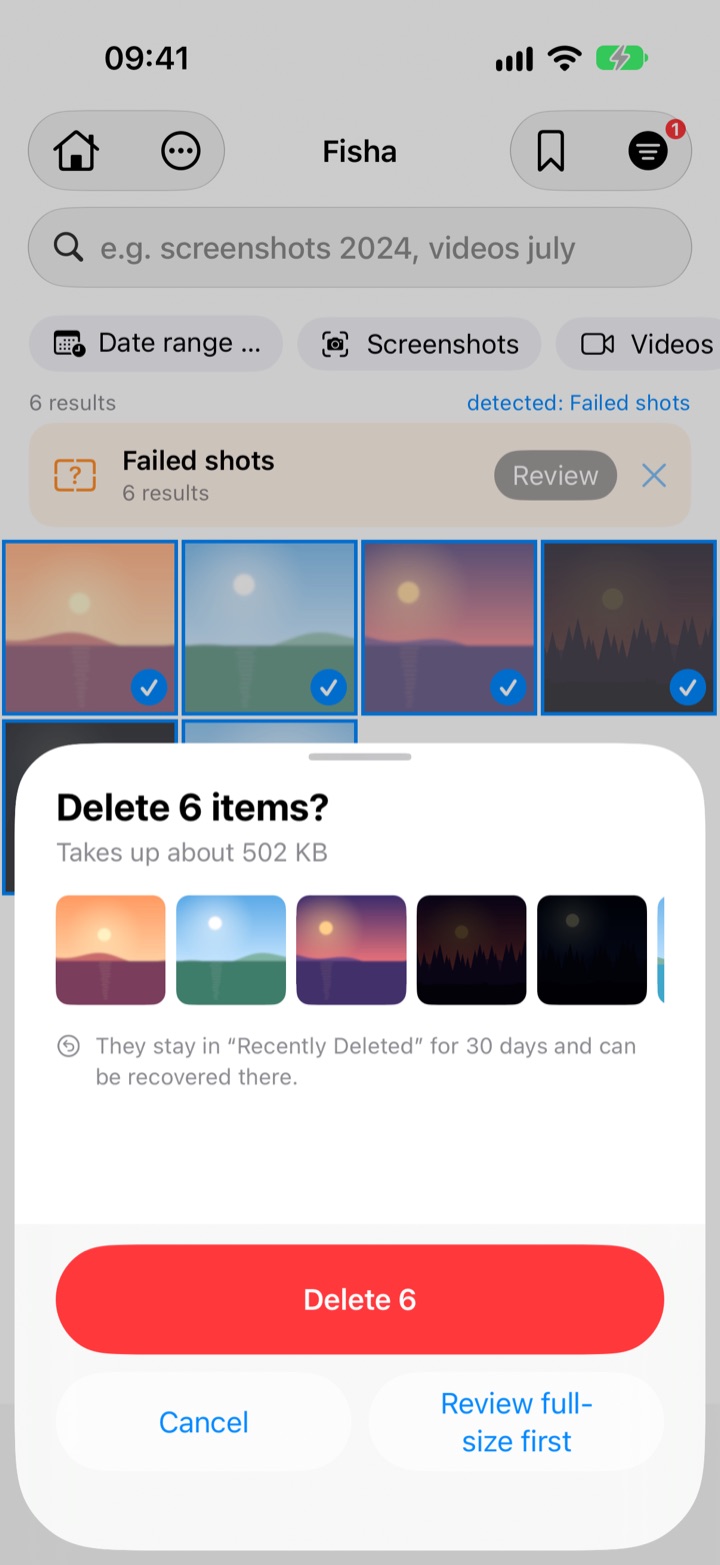
Suggestions with count and size, more than 25 combinable search criteria – and a search that understands everyday language.
Clean up
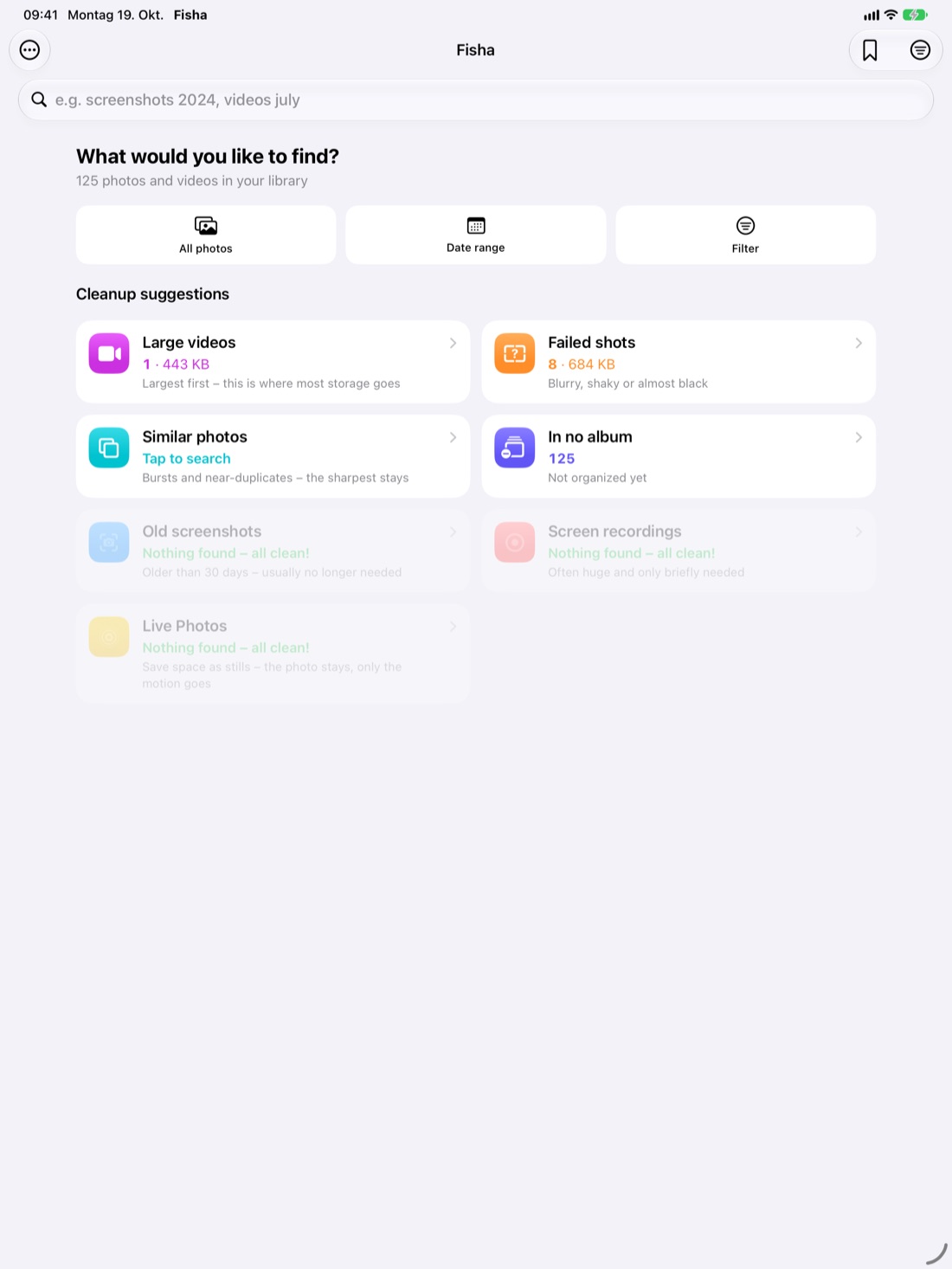
- Home screen with suggestions: large videos, failed and similar shots, identical copies, images from messengers, Live Photos, old screenshots, in no album – with count and size
- Identical copies: the same byte for byte – one always stays
- From messengers: saved images from WhatsApp, Telegram, Signal, Threema, Instagram & co.
- Review: swipe left = delete, swipe right = keep
- Compare bursts: the sharpest photo is suggested as “Keep”
- Convert Live Photos to stills – only the short video part (usually 2–3 MB) goes
- After deleting you see how much storage is freed – and “Is the Space Really Free?” explains when it takes a while
Search & filter
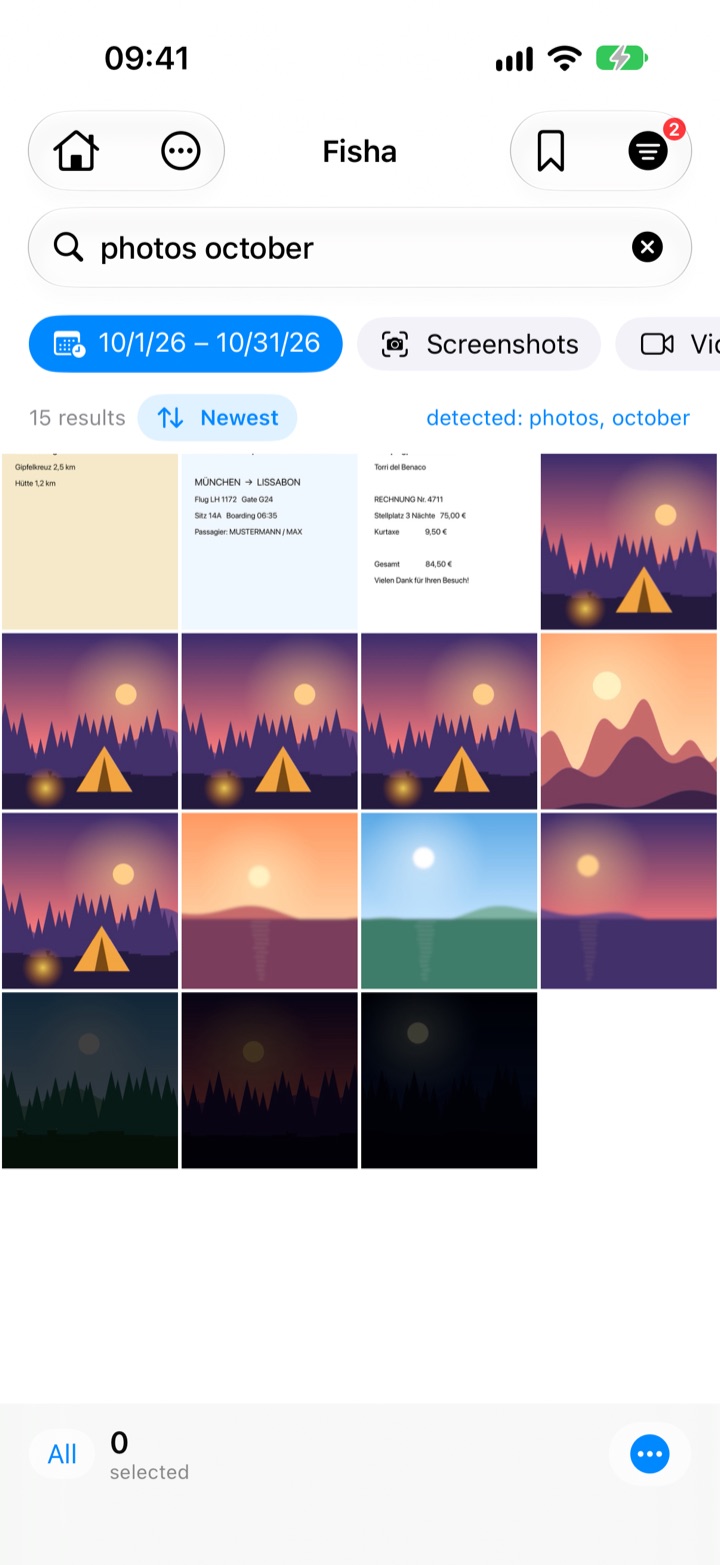
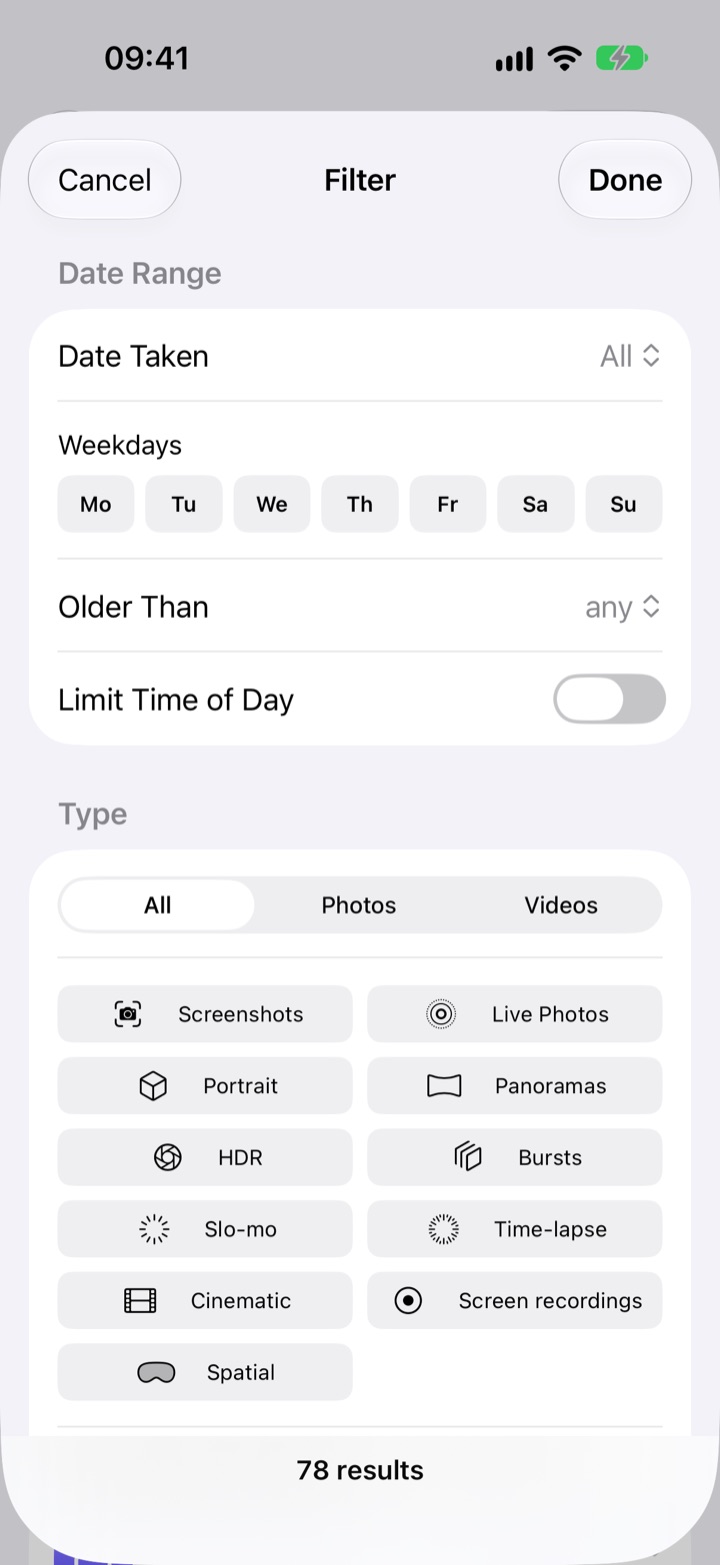
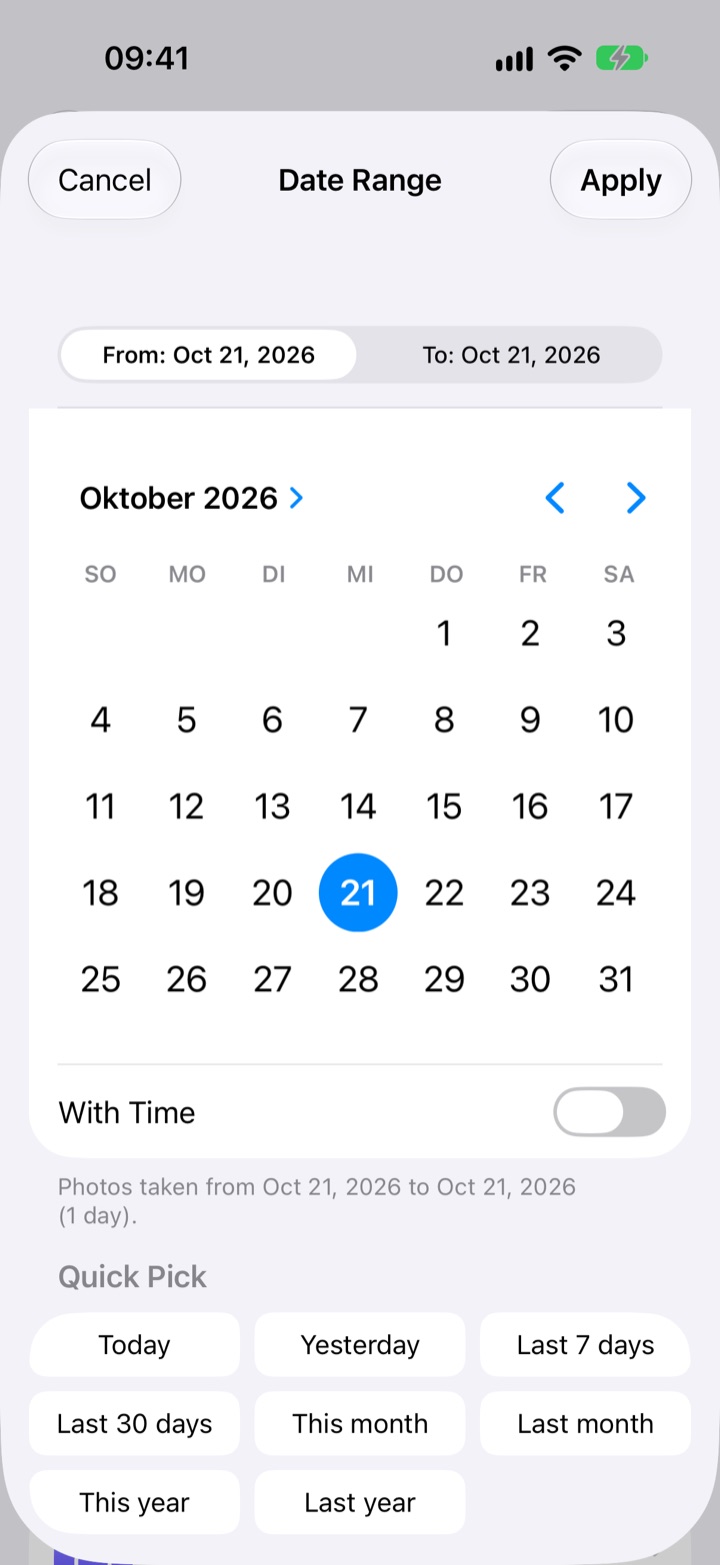
- Date range from – to, down to the minute if you like
- Older than 1 week to 5 years, weekdays, time of day
- Filter by file size and sort by size
- Photos in no album
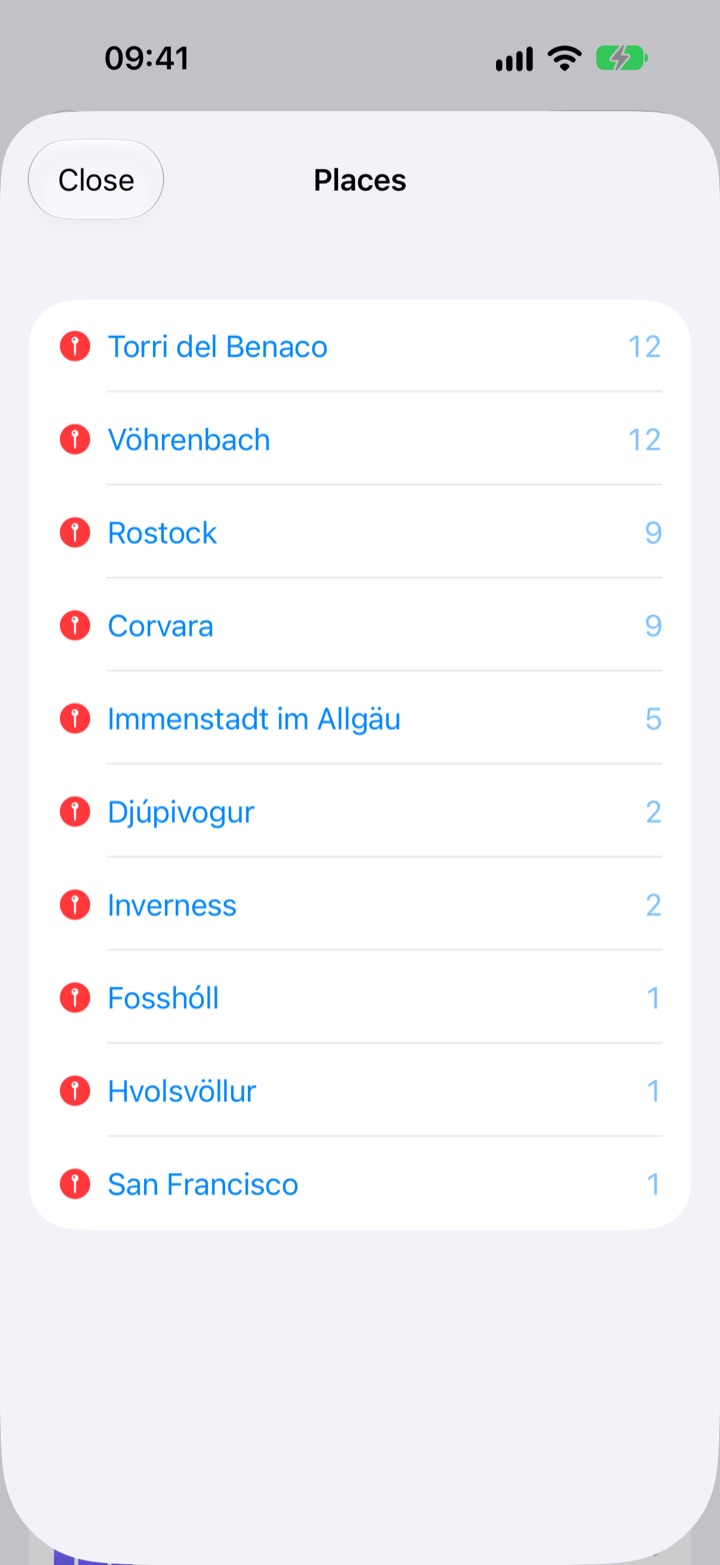
- Camera & lens, place & radius, format, file name
Media types
- Photos, videos, screenshots, Live Photos
- Portrait, panorama, HDR, bursts
- Slo-mo, time-lapse, Cinematic
- Screen recordings, spatial media
On-device image analysis
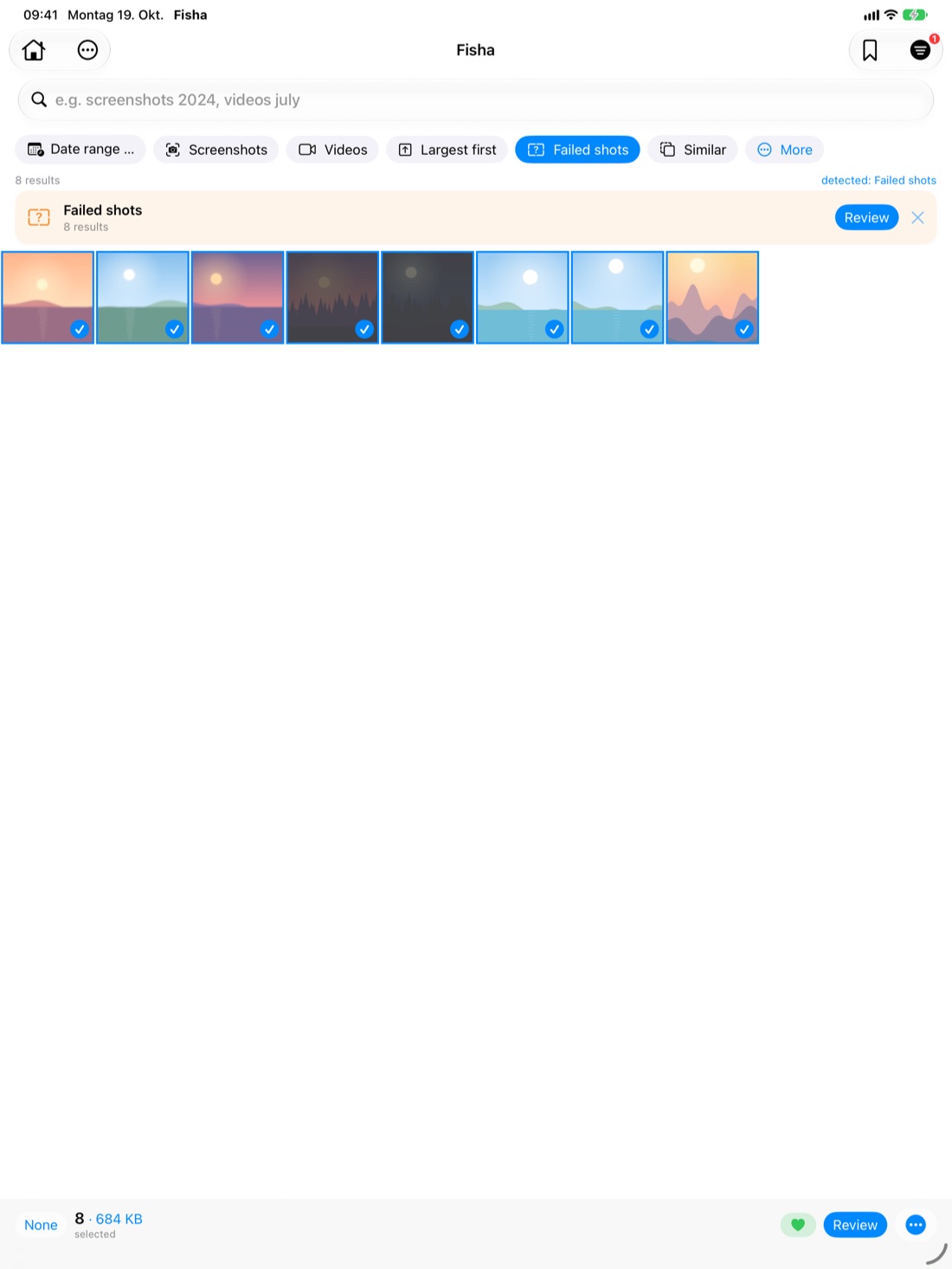
- Failed shots: blurry, shaky, too dark – “Strict” by default
- Similar photos & bursts – keep the sharpest
- Strict detection by default, switchable to Normal or Generous
- Image content: dog, beach, mountain, food, document … (about 100 terms)
Select
- Swipe to select whole rows, with auto-scroll
- Range, whole day, everything before or after
- All · None · Invert
- Live storage display, e.g. “312 · 4.8 GB”
Preview & actions
- Full screen with zoom, videos and Live Photos
- New album or add to album
- Favorite, hide, share, delete – for all at once
- Undo for album, favorite and hide
Convenience
- Templates and your own saved filters
- Widget, Siri & Shortcuts
- iPhone and iPad – with keyboard shortcuts on iPad
- In English and German
- Large text & VoiceOver
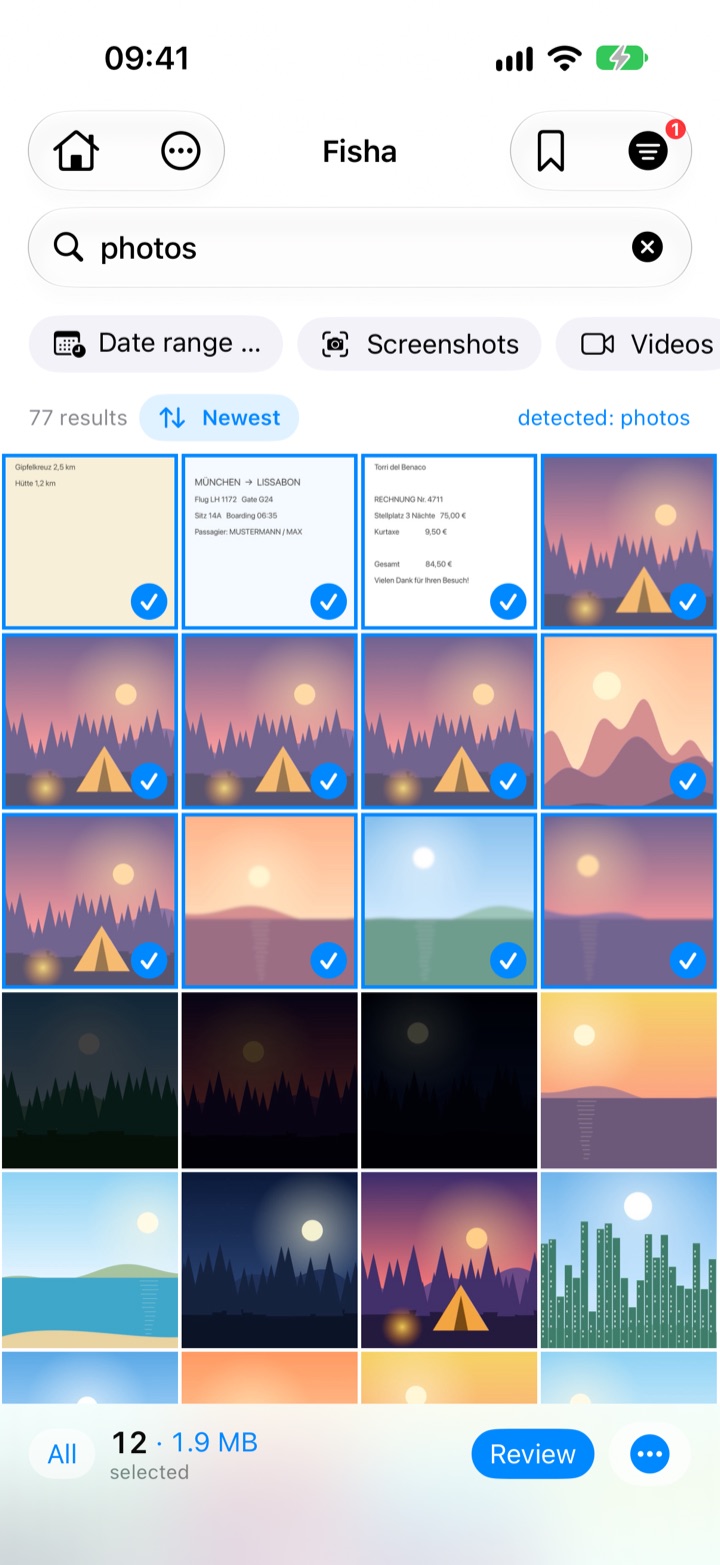
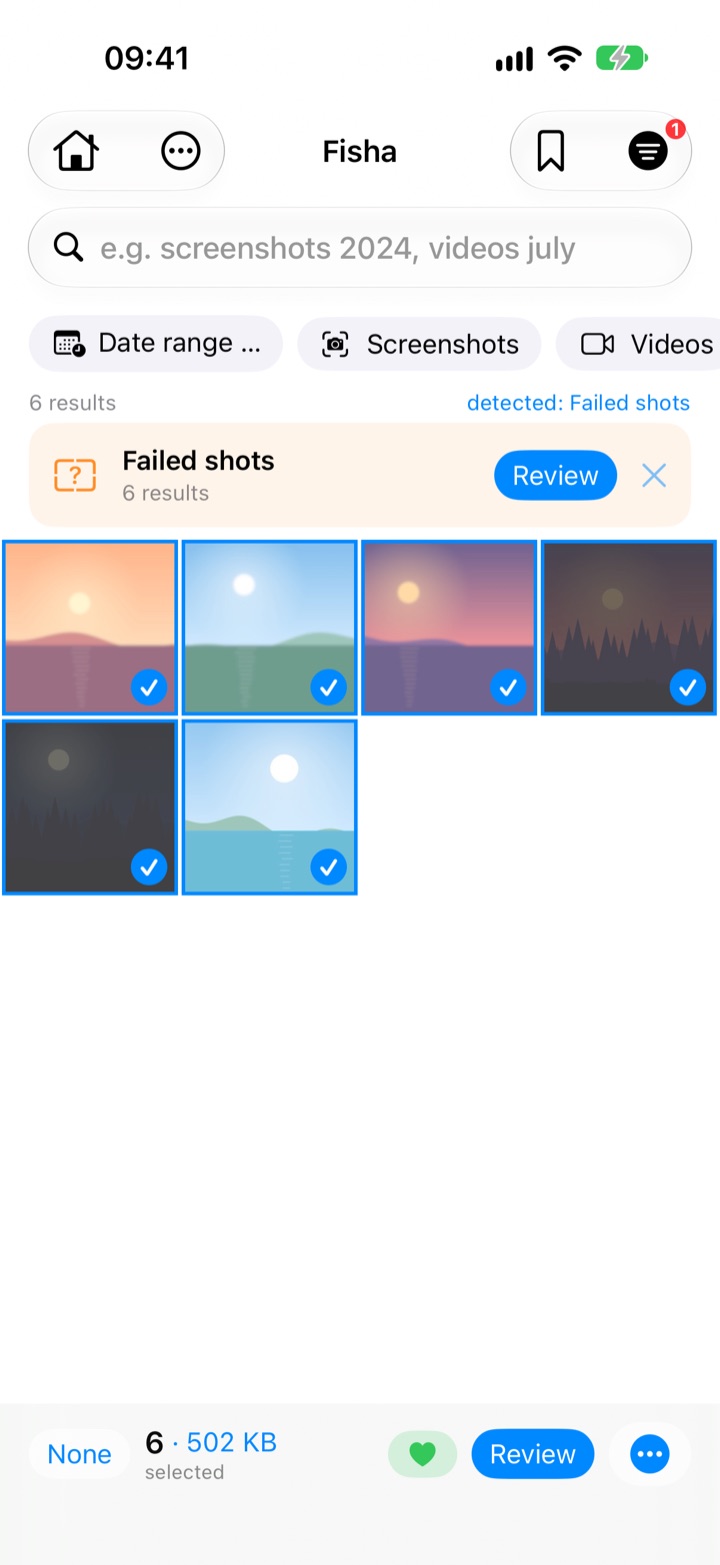
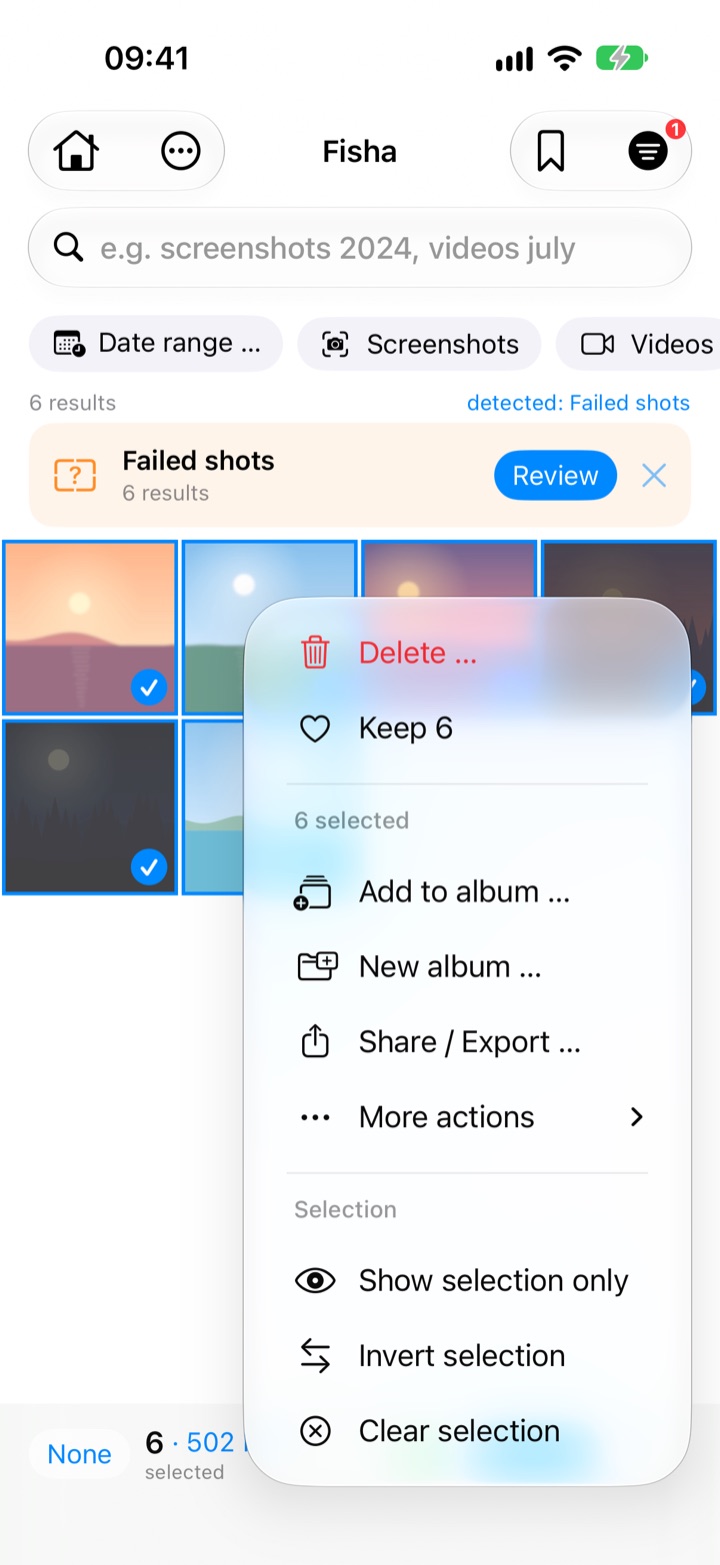
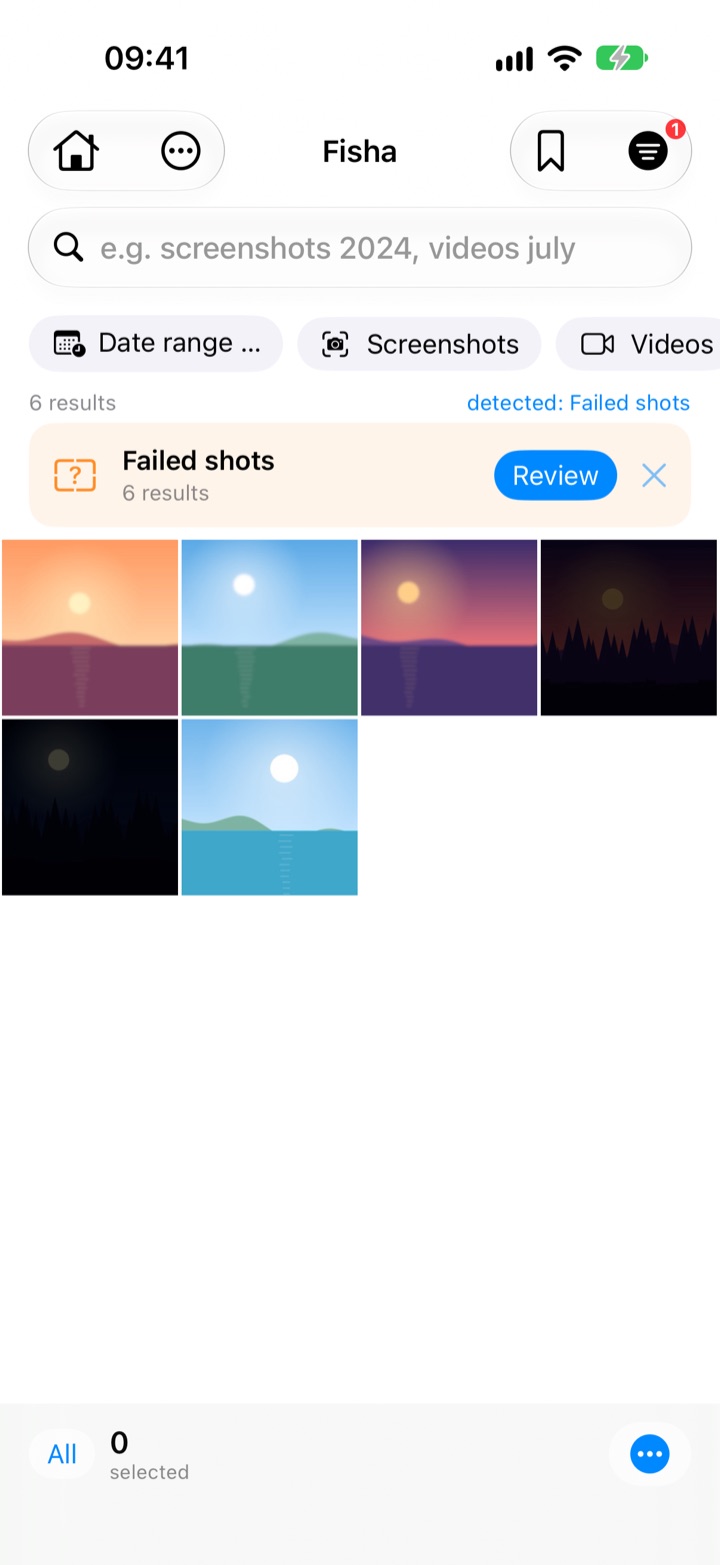
Finds shaky, dark and near-identical photos.
Fisha detects blurry and too-dark shots – portraits with intentionally blurred backgrounds are spared. For bursts, Fisha suggests keeping only the sharpest photo. Matches appear while the analysis is still running.
The analysis runs entirely on your iPhone.
Finds photos by the text in them.
Apple reads text in a single photo. Fisha searches many photos for text – invoices, tickets, signs, screenshots – and lets you select the matches and work with them.
- Search in quotes: "total tourist tax"
- Combinable: screenshots older than 1 year containing “order” → select all → delete
- View, copy and share recognized text – or export it from many photos as one text file
- While reading, you see the time left and the matches so far
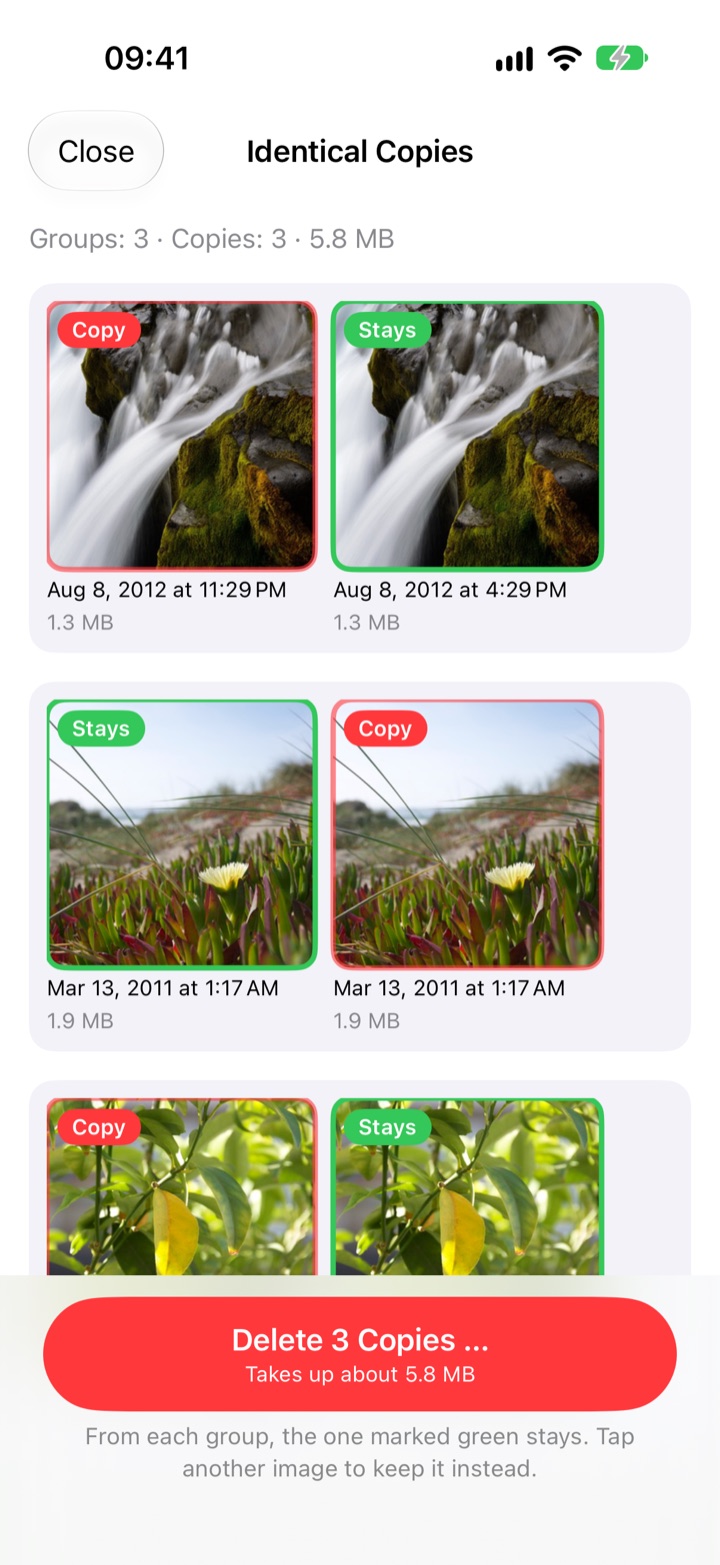
Duplicates? One stays.
Fisha finds photos and videos that are identical byte for byte – imported twice or saved back from WhatsApp. Only the extra copies are shown. No guesswork like with “similar”, so they’re safe to clean up.
- Green “Stays”, red “Copy” – you see every pair
- The favorite is kept, then the photo from an album, otherwise the oldest
- Similar photos stay separate: you decide on those
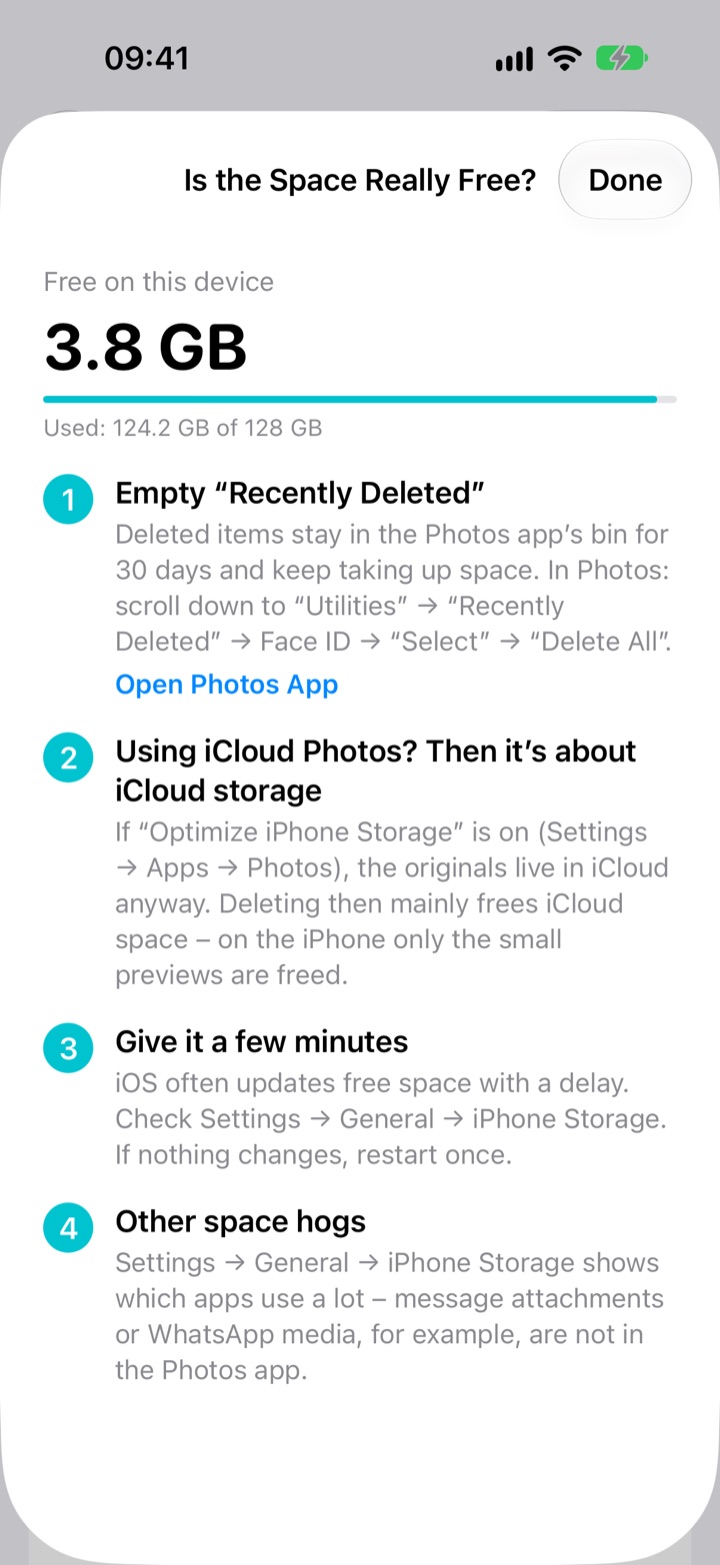
Deleted – and still full? Here’s why.
Deleting often doesn’t free space right away. Fisha shows your free storage and explains in four steps why – with a button to the Photos app.
- Deleted items stay in “Recently Deleted” for 30 days
- With iCloud “Optimize iPhone Storage”, deleting mainly frees space in iCloud
- iOS often shows free storage with a delay
On iPad, with the big picture.
One purchase, both devices. On the big screen you see your library at a glance – and with a keyboard you clean up even faster.
- The grid adapts to the width – up to 13 columns in landscape
- Split View and Stage Manager
- Keyboard shortcuts: ⌘A all · ⌘I invert · ⌘N new album · ⌘⌫ delete
- Review with the arrow keys
Start for free. Pro is a one-time purchase – no subscription.
Free
- Search and all filters
- Cleanup suggestions and review
- Select, albums, share
- Text recognition
- The first 50 deleted items
Fisha Pro
Everything in Free, plus:
- Unlimited deleting
- Back up first, then delete – verified on a drive, hard disk or cloud
- Convert Live Photos to stills
- Compare bursts
No subscription, no ads. “Restore Purchases” is always available in the app. Prices may vary by country.
Good to know
Does Fisha upload my photos?
No. Fisha works exclusively on your iPhone. There’s no server, no account and no data transfer to us. Only when you choose “Back Up …” does Fisha copy photos to the place you pick – e.g. your USB drive or your cloud.
Why isn’t space freed after deleting?
Deleted items stay in “Recently Deleted” for 30 days. With iCloud “Optimize iPhone Storage”, deleting mainly frees space in iCloud, less on the iPhone. And iOS often shows free storage with a delay. Fisha explains this under “Is the Space Really Free?” – with step-by-step instructions.
How safe is “back up first, then delete”?
Fisha reads every copied file back and compares it by checksum. Before deleting, Fisha checks everything again: Is the file still there, unchanged, the drive connected, the cloud done? Only then is anything deleted – and even then everything stays in “Recently Deleted” for 30 days.
Which storage works?
Anything the Files app knows: USB-C drive, SSD, SD card (with adapter), network drive, iCloud Drive, Dropbox, Google Drive, OneDrive and more.
Does it work with large videos?
Yes, even with 10 GB and more. Fisha copies straight to the storage, without a temporary copy on the iPhone. You can pause anytime and continue later from the same spot.
Can I back up to “On My iPhone”?
Yes, but that isn’t a real backup: if the device is lost, both copies are gone. That’s why Fisha asks where the folder is and doesn’t mark anything from there for deletion. A USB drive, hard drive or cloud folder is safest.
What’s the difference between identical and similar photos?
Identical copies are the same byte for byte – one of them always stays, so they’re safe to clean up. Similar photos are e.g. bursts with small differences: Fisha suggests the sharpest, you make the call.
Why does Fisha need “Full Access” to my photos?
So Fisha can search your whole library. With “Limited Access”, Fisha only sees the photos you share one by one.
Can Fisha select photos directly in the Photos app?
No, Apple doesn’t allow any app to do that. Select in Fisha and tap “New Album” – then open the album in the Photos app and you have everything together.
Are deleted photos gone?
No. As usual, they stay in the “Recently Deleted” album of the Photos app for 30 days.
Why does the first analysis take a while?
Fisha checks every photo once on the device and remembers the result. After that it’s instant. Matches appear while the analysis is still running.
Can Fisha find text in photos?
Yes, if you turn on text recognition (off by default). You choose “Screenshots only” or “All Photos” and see beforehand roughly how long the first read will take. The text stays encrypted on your iPhone.
Can Fisha search for people?
No – Apple doesn’t share face recognition with other apps.
What about photos that are only in iCloud?
Viewing and selecting work as normal. They’re only skipped by the image analysis.
How much does Fisha cost?
Fisha is free – including search, filters, suggestions, review and the first 50 deleted items. Fisha Pro is a one-time purchase of US$4.99 / €4.99 and unlocks unlimited deleting, “back up first, then delete”, converting Live Photos and comparing bursts. No subscription.
Does Fisha delete automatically?
No. Fisha suggests, you decide. Before deleting you see a summary, iOS asks as well, and everything stays in “Recently Deleted” for 30 days. If favorites or photos from your own albums are included, Fisha tells you first.
Does Fisha remember what I want to keep?
Yes. Photos you kept while reviewing won’t be suggested again. You can reset this in Settings.
What happens when converting Live Photos?
Fisha creates a full-quality still – with date, location, favorite and albums – and moves the original to “Recently Deleted”. To the Photos app the still is newly added: if your library is sorted “By Date Captured”, it sits in its old spot.
Which devices?
iPhone and iPad with iOS 18 or later.
More questions? Visit support or write to hallo@fisha.info.